Guides·
Native variants vs. combined listings: what Shopify actually sees
Combined listings apps change what shoppers see. Native variants change what Shopify sees. Compare how each approach affects POS, ERPs, feeds and SEO.
How Merges generates 301 redirects from archived source products to the new merged product, which plans include redirects, and how to manage them in Shopify.
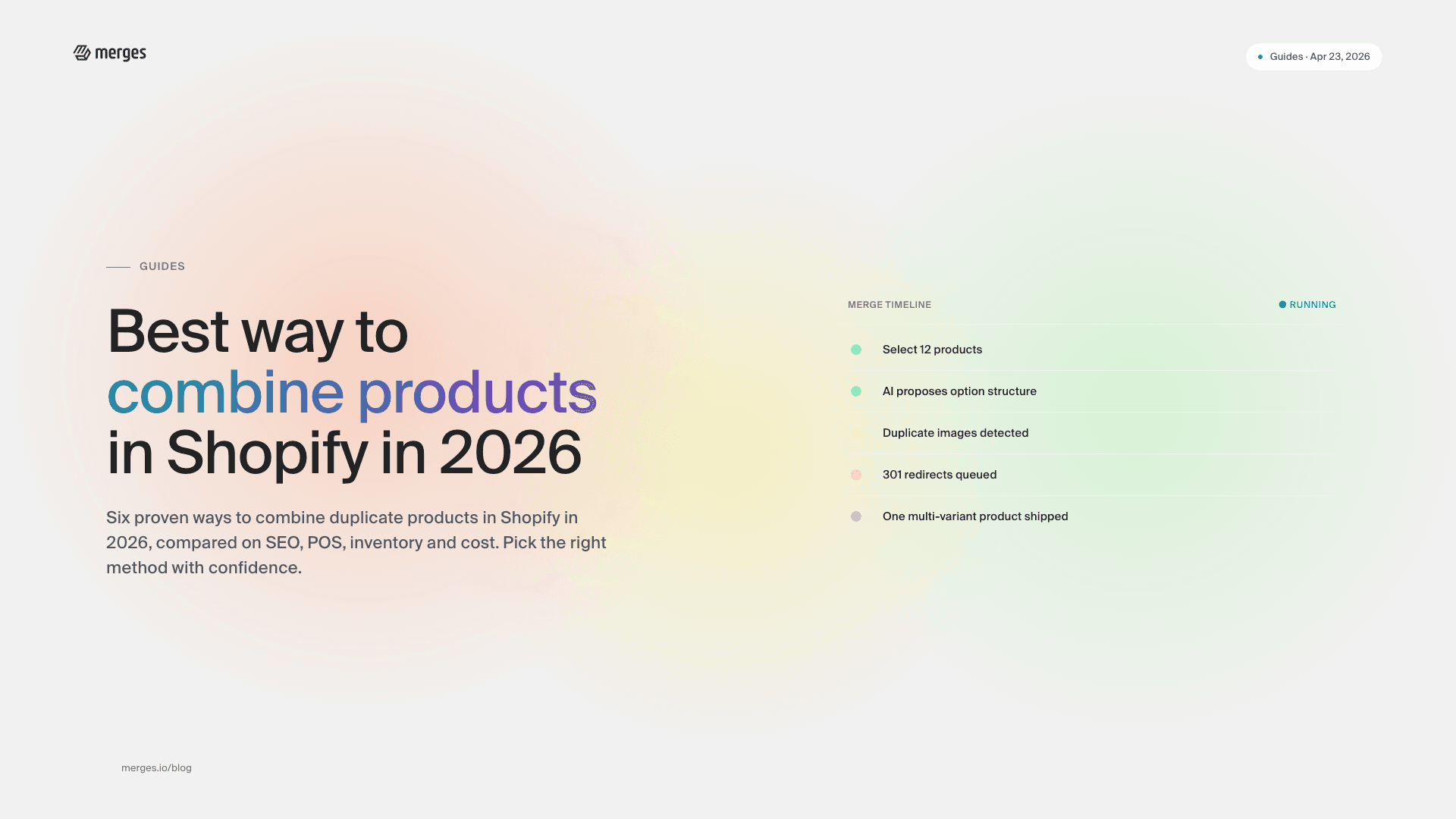
When Merges saves a merge, the source products are archived - their URLs stop resolving to live product pages. Without a redirect, traffic from Google results, existing backlinks, and indexed emails hits a 404. Merges prevents that by generating a 301 redirect for each source product, pointing to the new merged product.
Automatic 301 redirects are available on the PRO and UNLIMITED plans.
The BASIC plan does not generate redirects automatically. You can still add them manually in Shopify (see below), but the merge flow will not create them for you.
For each source product that is merged:
/products/<handle>) redirects to the merged product’s canonical URL./products/<handle>?variant=<id>) redirect to the merged product’s canonical URL. The variant parameter is not preserved - the customer lands on the merged product and selects a variant via the variant picker.Redirects are standard Shopify 301 redirects, stored in Online Store → Navigation → URL redirects in your admin. They behave identically to redirects you create by hand.
Google and other search engines treat 301 redirects as permanent. The SEO value of the original URL - links, ranking history, crawl frequency - transfers to the merged product over the following weeks as crawlers re-index.
A few things to know:
Redirects created by Merges are visible in Online Store → Navigation → URL redirects in your Shopify admin. From there you can:
Merges does not re-create redirects after you edit or delete them. The admin is the source of truth.
If you are on the BASIC plan, add redirects by hand after each merge:
/products/plum-sneakers)./products/sneakers).Repeat for every source product. The archived products’ handles are visible on the archived product’s admin page.
Redirects remain in your store after you uninstall Merges. They are Shopify redirects, not Merges data. If you want to remove them, delete them individually from the URL redirects list.
A redirect is missing. Check Online Store → Navigation → URL redirects and search for the source product’s handle. If it is not there and you are on PRO or UNLIMITED, email support@merges.io with the merged product URL.
A redirect points to the wrong product. Edit the redirect’s target URL in the Shopify admin.
The old URL still 404s for some users. Some browsers and CDNs cache 404 responses aggressively. Have the user clear their cache or open an incognito window. For public pages, purge your CDN if you use one.
I want to keep the old URLs active. Redirects are created because the source products are archived and their URLs no longer serve live product pages. If you need both URLs to remain active, do not merge - or unarchive the source product, which will break the redirect.
For redirect-specific questions, email support@merges.io with the merged product URL and what you are seeing.